
An online SQLite editor that keeps your data on your device
Open a .sqlite or .db file, browse and edit tables, write SQL, and export — in your browser, with no installation. Your database contents never leave your device.
File types
| Import | Export |
|---|---|
| .sqlite and .db Files are integrity-checked; replace an existing database or keep both. | .sqlite Includes saved queries, forms, reports, and attachments. |
| .accdb and .mdb Imports tables and data. See the Access import limits. | CSV Export a table, selected records, or query results, using commas, semicolons, or tabs. |
| .sql Import a .sql script as a database. | SQL script Export database data as a SQL script. |
| CSV Import into an open database from UTF-8 or Windows-1251. |
Excel files are not supported, and databases cannot be saved as Access files.
Query your data
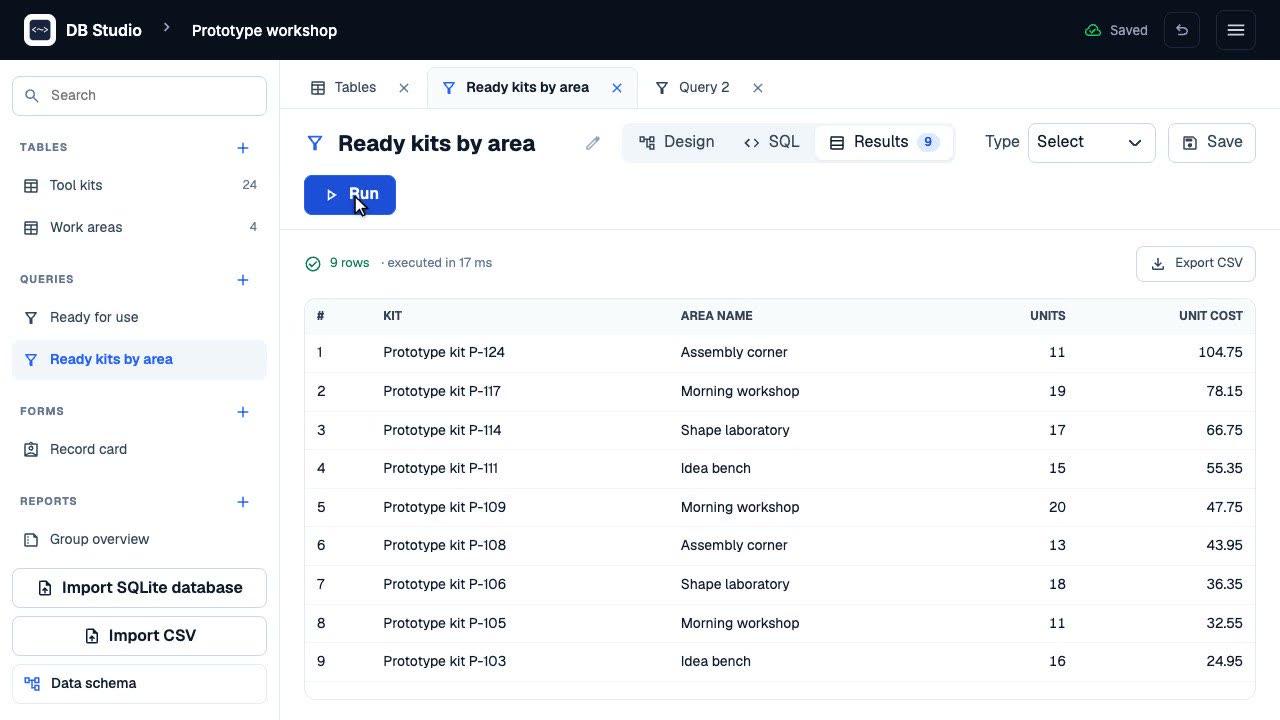
The SQL editor uses SQLite 3.54, offers autocomplete, and runs a query with Ctrl/Cmd+Enter. Its hints rewrite common Access syntax, including TOP, &, #dates#, * wildcards, [brackets], and IIf.
The visual query designer is for desktop computers and supports joins, criteria, totals, and parameters, plus select, update, delete, append, and make-table queries. Action queries ask for confirmation. Saved queries stay in the database; saved select queries are also views that other SQLite tools can read.
Local versus network
Stays on your device
- Database contents
- Imports and exports
- Queries
Uses the network
- Loading the app on your first visit; then it works offline
- Downloading a lesson database from the catalogue when you open it
- Optional visit statistics (pseudonymous, kept 90 days), only if you allow them
- Bug reports, only when you send one
No account and no cloud copy.
Storage and export
Databases are stored in this browser's private storage (OPFS, falling back to IndexedDB). One safety copy in the same browser, up to 50 MB, can help after an interrupted save but is not a backup. Clearing site data deletes databases. Export a .sqlite file to keep a copy or move it to another computer. Several tabs can safely open the same database.
Attachments up to 5 MB each are stored inside the database.
Good to know
DB Studio adds internal tables whose names start with _dbstudio_ to store saved queries, forms, reports, and attachments; they travel with the exported file. Field types are inferred for columns from other tools. Foreign keys are enforced.
Learn it step by step
Follow these tutorials to write and save queries, keep a copy of your database, import Access files, and explore your data.
Create and save a query in DB Studio
Filter and sort Makerspace records in DB Studio, save the query, and inspect its SQL.
Save and reopen a DB Studio database
Export a SQLite file, hand it in or move it to another computer, and import it without losing a same-named database.
Import an Access file into DB Studio
Import your Access file locally, review what was preserved, check tables and records, then export and reopen a SQLite copy.
Sort, find and filter records
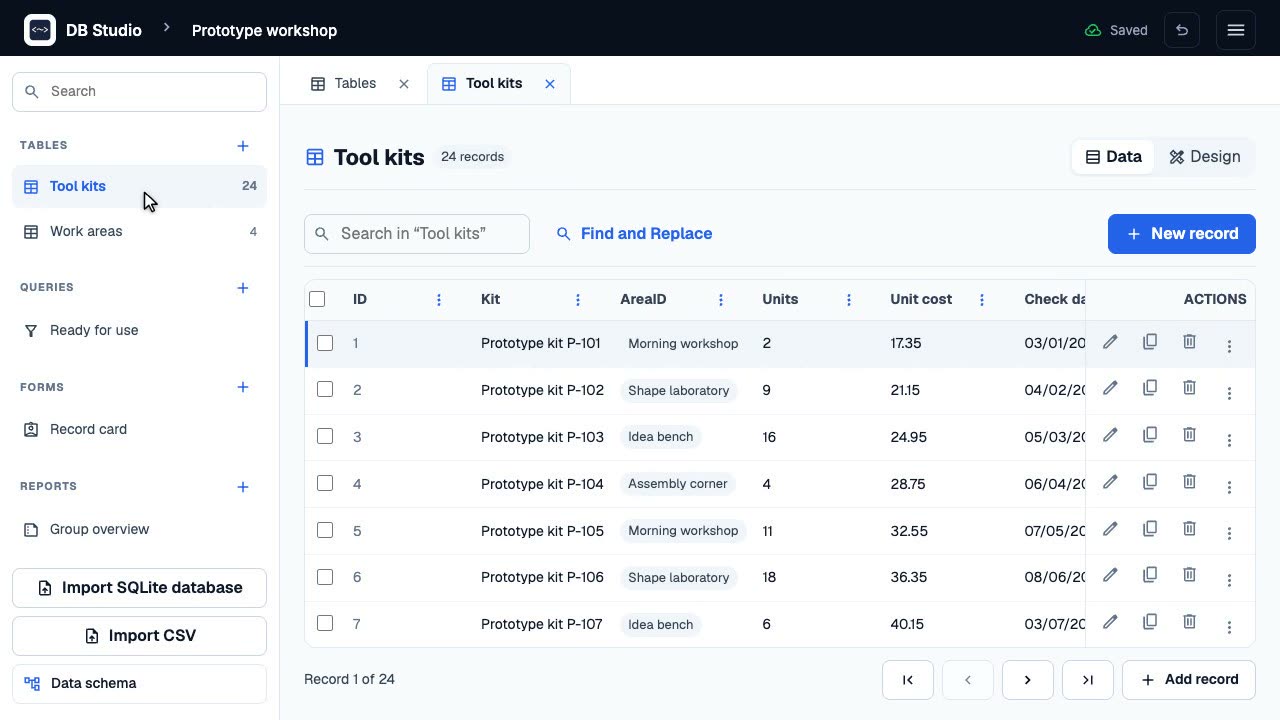
Sort kits by unit cost, filter a price range and find records in DB Studio without changing the stored data.
Browse all tutorials Coming from Microsoft Access? Plan lessons for your class