
A database you can see, right in your browser
A free, no-account database tool that works in your browser. Your database contents stay on this device, and the interface is available in English and Ukrainian.
What you can do
DATASHEET
| # | Feature | What you do | On a phone |
|---|---|---|---|
| 1 | Design tables | Choose Access-style field types and properties as you build a table. | computer |
| 2 | Enter and filter data | Datasheets and forms; sort, filter, search and replace. | yes |
| 3 | Link tables | Relationships with referential integrity keep related records consistent. | computer |
| 4 | Build queries | Use the visual designer, or write SQLite SQL. | SQL only |
| 5 | Make reports | Group, sort and total, then print or save as PDF. | computer |
| 6 | Import and export | SQLite files and Access tables in; .sqlite, CSV or SQL out. | yes |
Design tablescomputer
Enter and filter datayes
Link tablescomputer
Build queriesSQL only
Make reportscomputer
Import and exportyes
See it
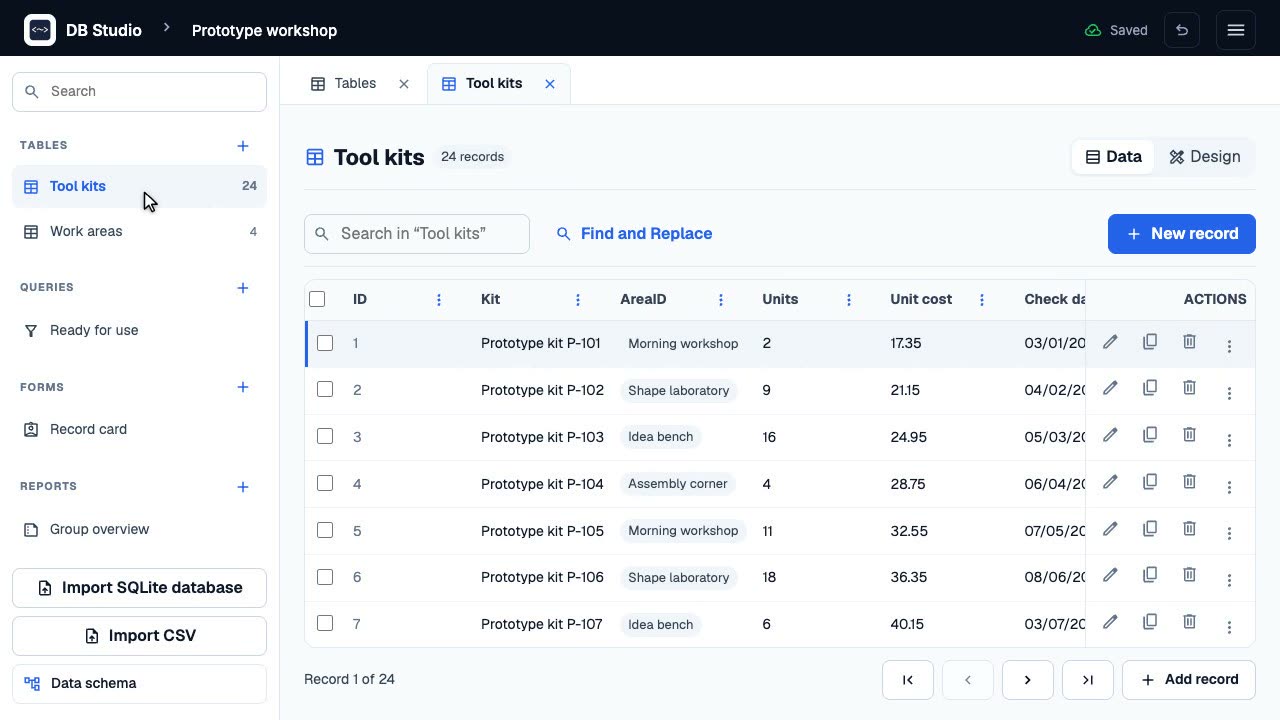
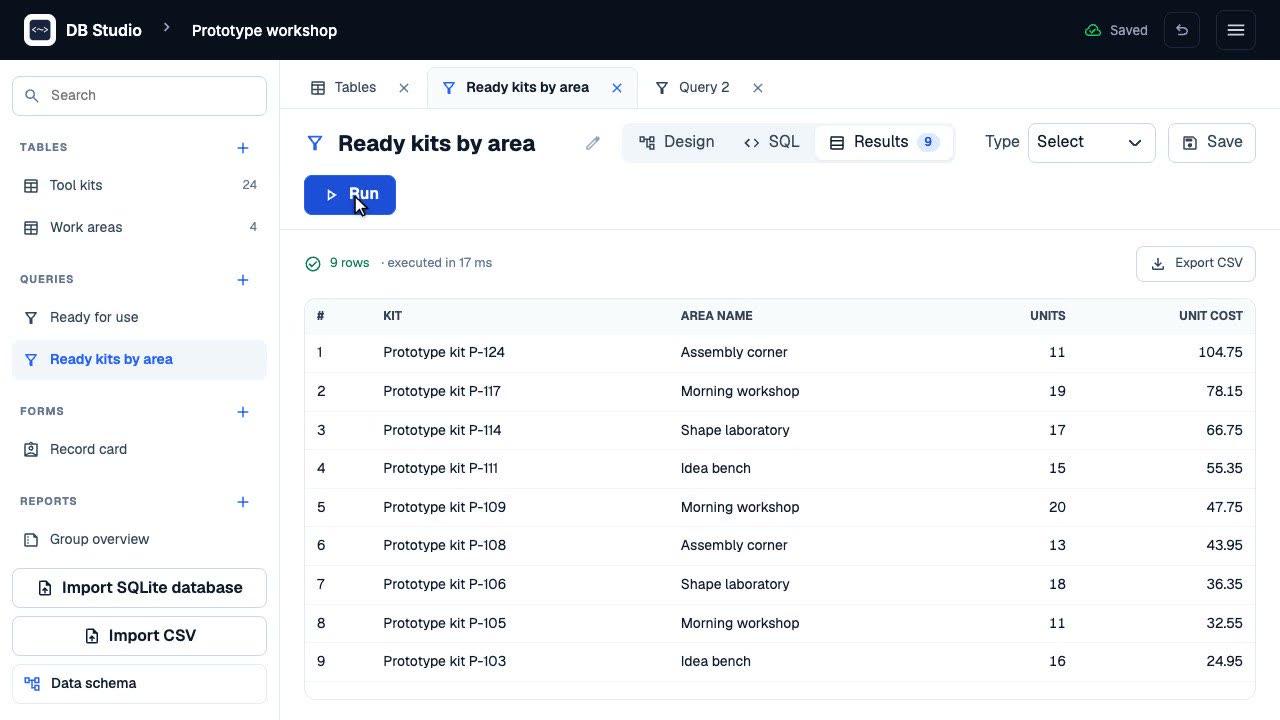
Start
Get started in three steps
Create or open a lesson database
Create a database, or choose one from the lesson database catalogue.
Keep or hand in your work
Export your work as a .sqlite file to keep it or hand it in.
Who it’s for
Teachers and studentsUse guided lessons and sample databases to explore tables, queries, forms and reports.An Access alternative for lessonsA free option for introductory database lessons, with important limits: Access files do not bring over queries, forms, reports, macros or VBA.An online SQLite editorOpen .sqlite and .db files, work with SQL, and export your database.
Start here
Explore the DB Studio interfaceExplore the library, tables, queries, forms, reports and document tabs with a fictional practice database.Beginner · 8 minCreate a database in DB StudioCreate and manage a local database in DB Studio, then learn where your schoolwork is stored.Beginner · 8 minCreate a table in DB StudioDesign a table with an automatic key and useful field types, add three records, and export the database.Beginner · 10 min
Where your data lives
Where it lives
Database contents stay in this browser on this device. If you clear DB Studio's data in your browser settings, or switch browser or device, the database will not be there.
Backups
Export regularly: browser storage is not a backup. Links with ?db= work only in the same browser.
Questions
Is DB Studio free?
Yes. DB Studio is free to use.
Do I need an account?
No account is needed to use DB Studio.
Does it work offline?
After your first online visit, DB Studio can work offline once its files are available in the browser.
Can I open Access files?
You can import tables and data from Access files, but not queries, forms, reports, macros or VBA. Password-protected or encrypted files cannot be imported.
Does it work on phones?
Phones can view and enter data, use SQL and perform other supported tasks. Designing tables and queries requires a desktop computer.
Where is my data stored?
Database contents are stored locally in this browser on this device. Clearing site data removes them, so export your work regularly.
Which languages are available?
The interface is available in English and Ukrainian.
Is DB Studio a replacement for Access?
It can support introductory database lessons, but it is not fully compatible with Access. Access queries, forms, reports, macros and VBA are not imported.
Ready to try it?
Open DB Studio in your browser and start with a new database or a lesson sample.